Simple Bulk Attachment Downloader - User Guide
Welcome to Simple Bulk Attachment Downloader! This guide will help you quickly download all attachments from your Jira issues in just a few clicks.
🚀 Quick Start
What This App Does
- Downloads all attachments from Jira search results as a single ZIP file
- Organizes files automatically by issue in clean folder structure
- Works 3x faster with parallel downloading technology
- Integrates seamlessly with Jira's issue navigator
Before You Begin
- Ensure you have the app installed in your Jira instance
- You need read access to the issues containing attachments you want to download
- The app works with any Jira search results or saved filters
📋 How to Use
Step 1: Navigate to Your Issues
- Go to Issues → Search for Issues in Jira
- Use any search method:
- Quick Search: Type keywords in the search bar
- JQL Query: Use advanced Jira Query Language
- Saved Filters: Select from your existing filters
- Project Browse: Browse issues by project
Step 2: Find the App
- Once you have your search results displayed, look for the Simple Bulk Attachments Downloader button
- The button appears in the issue navigator toolbar (top of the search results)
- Click the Simple Bulk Attachments Downloader button
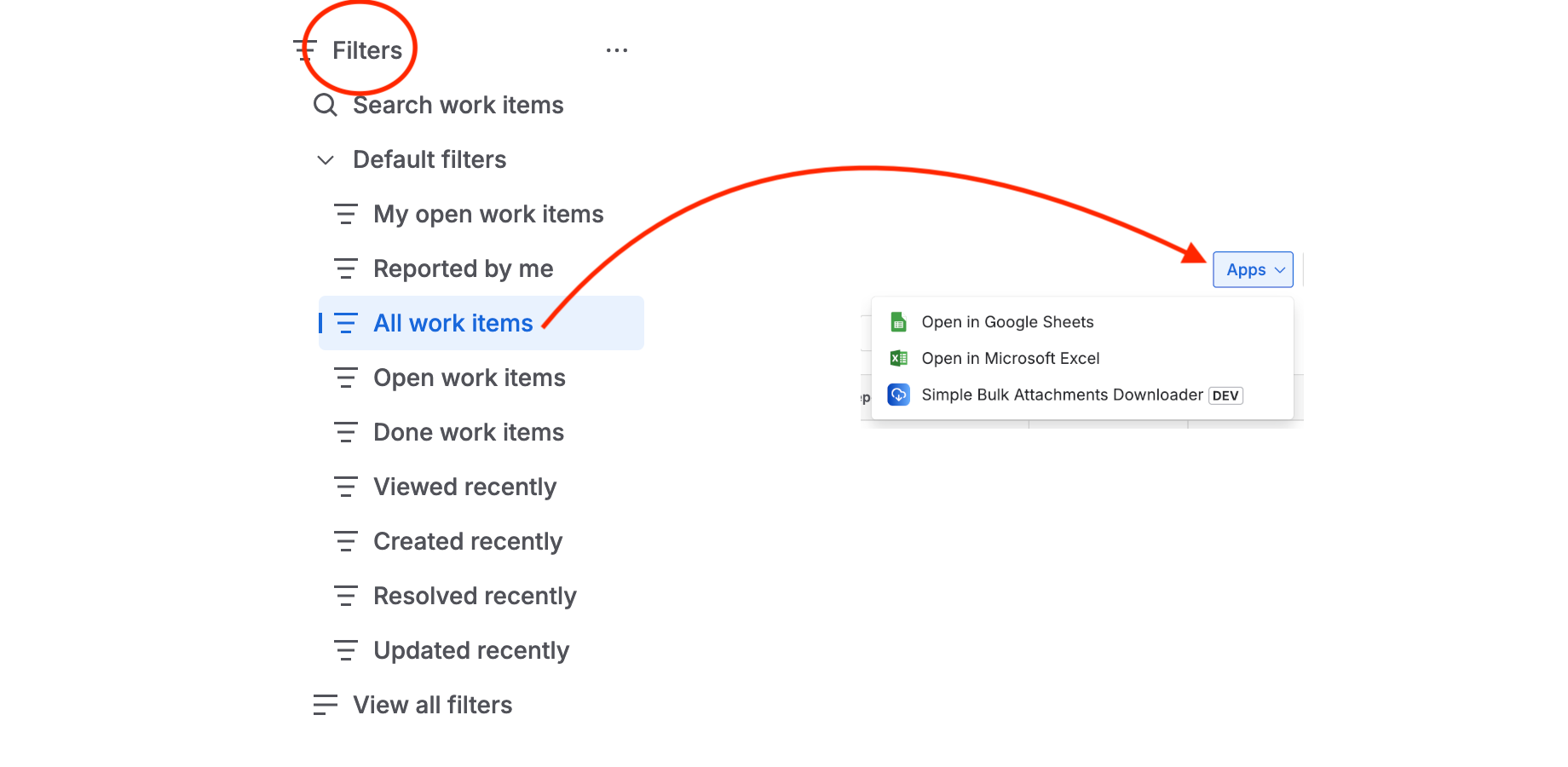
Step 3: Review Attachment Summary
The app will automatically analyze your search results and show:
- Issues found: Total number of issues in your search
- Total attachments: Number of files that will be downloaded
- Total size: Estimated download size in MB
- Filter context: Shows the JQL query being used
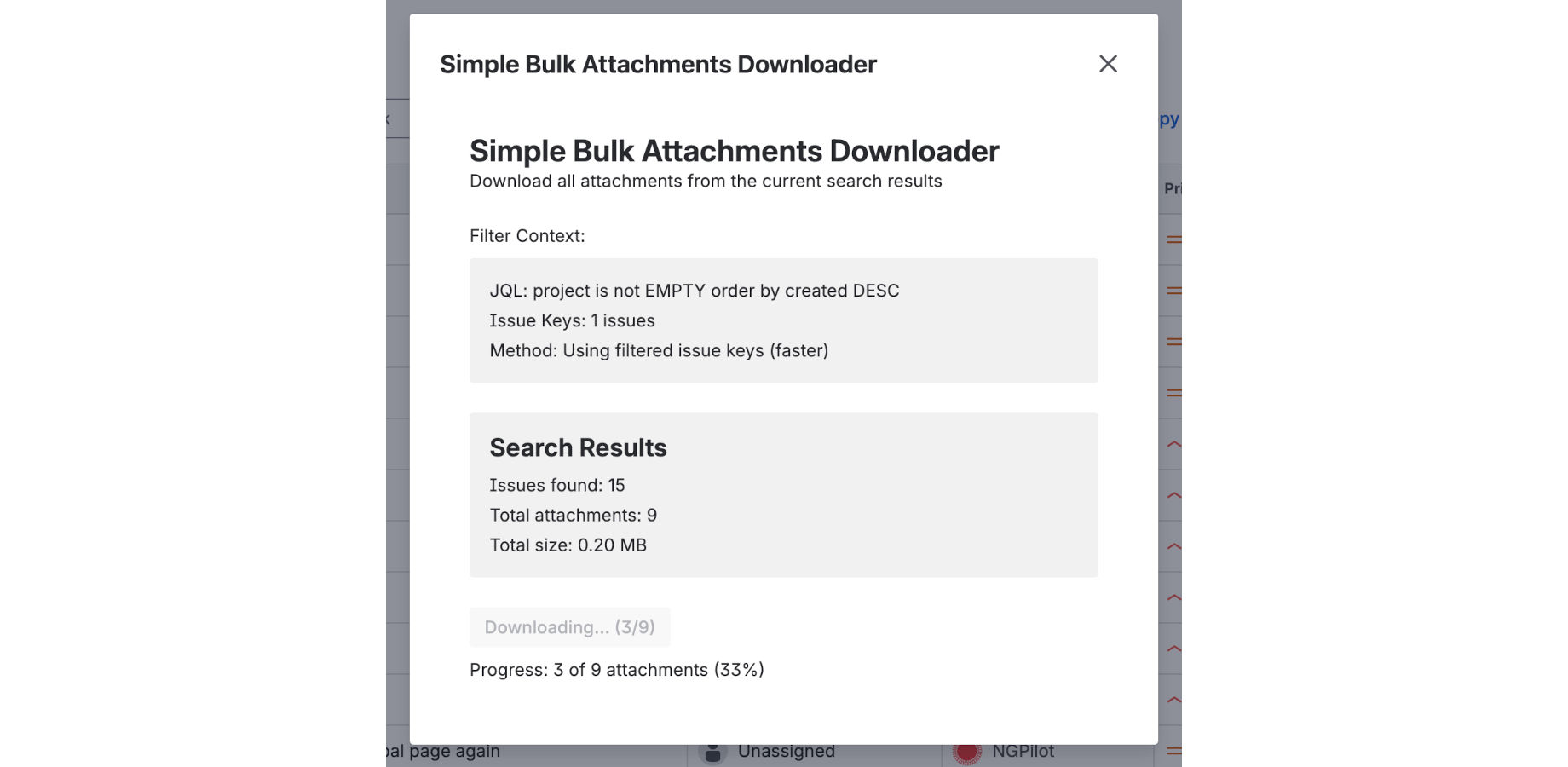
Step 4: Download Attachments
- Click the Download X Attachments as ZIP button
- Watch the real-time progress as files are downloaded in parallel
- Your browser will automatically start downloading the ZIP file when complete
Step 5: Access Your Files
- Open the downloaded ZIP file (usually in your Downloads folder)
- Files are organized in folders by issue:
ISSUE-123 - Issue Summary - Each folder contains all attachments from that specific issue
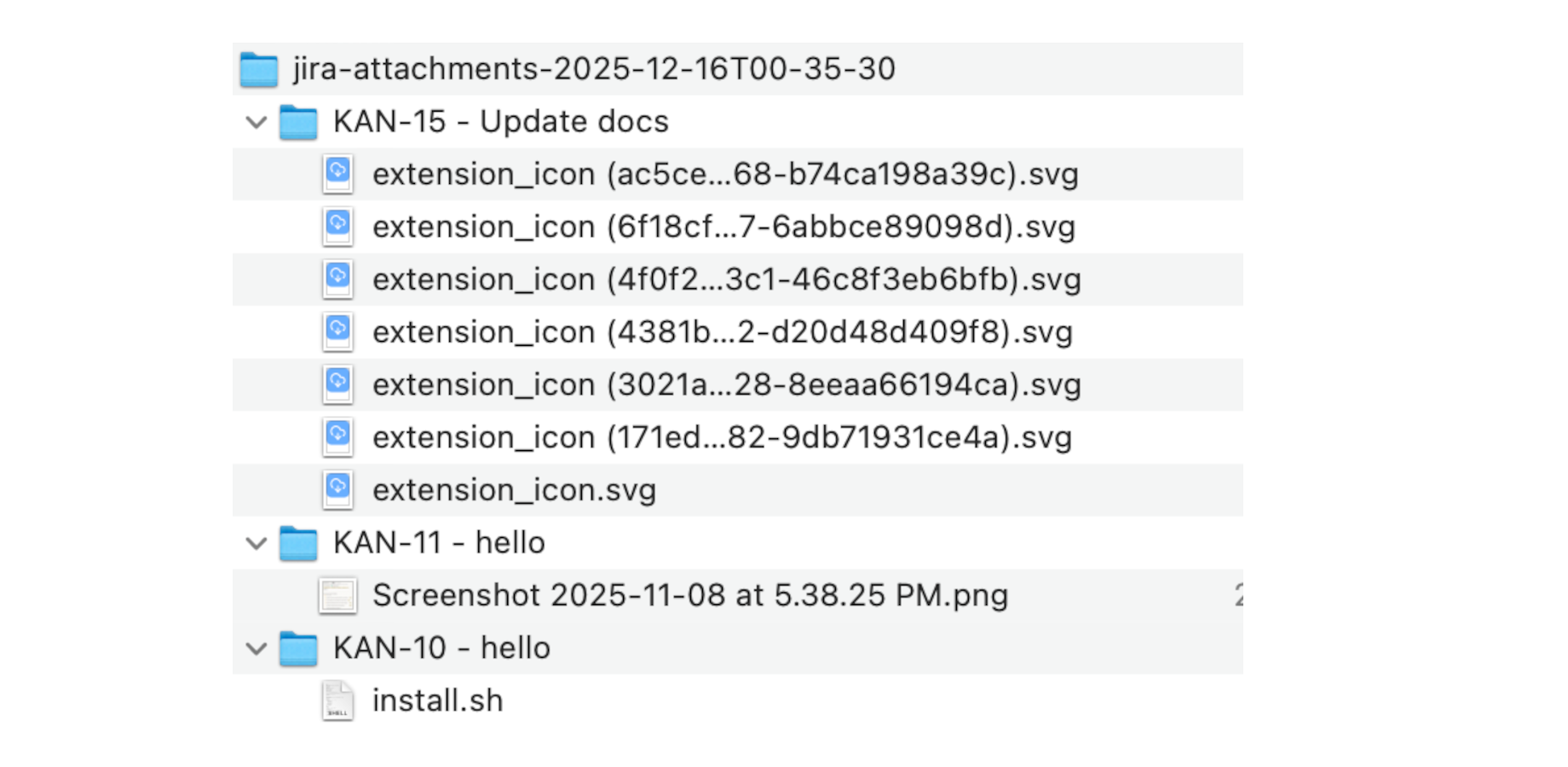
🎯 Use Cases
For Project Managers
Collecting Deliverables
- Search for issues in your project:
project = "MY-PROJECT" - Download all deliverables, documents, and assets in one go
- Share organized folders with stakeholders
For QA Teams
Gathering Test Evidence
- Filter by test execution issues:
labels = "test-execution" - Download all screenshots, logs, and test artifacts
- Archive evidence for compliance or reporting
For Support Teams
Case File Management
- Search support tickets:
project = "SUPPORT" AND created >= -30d - Download customer-provided files, logs, and screenshots
- Create organized case archives
For Development Teams
Release Preparation
- Filter by release version:
fixVersion = "1.2.0" - Download all documentation, specs, and assets
- Package release artifacts efficiently
⚡ Advanced Features
Smart Parallel Downloads
- 3-8x faster than manual downloading
- Automatic concurrency control optimizes speed based on file count
- Progress tracking shows real-time download status
- Error handling creates error files for failed downloads
Intelligent Organization
- Folder structure:
Issue-Key - Issue Summary/attachments - Original filenames preserved
- Duplicate handling maintains all files even with same names
- Clean naming removes invalid characters for file system compatibility
Seamless Integration
- Works with any JQL query or saved filter
- No configuration required - works immediately after installation
- Respects permissions - only downloads attachments you can access
- Browser-native downloads - uses your browser's download manager
🔧 Troubleshooting
No Attachments Found
Problem: App shows "0 attachments" even though you see attachments in issues
Solutions:
- Refresh the analysis - Click "Refresh Analysis" button
- Check permissions - Ensure you can view the attachments in individual issues
- Verify search results - Make sure your search actually returns the expected issues
Download Fails or Stops
Problem: Download progress stops or ZIP file is incomplete
Solutions:
- Check network connection - Ensure stable internet connection
- Try smaller batches - Narrow your search to fewer issues
- Browser storage - Clear browser cache and try again
- File size limits - Very large downloads (>1GB) may timeout
ZIP File Won't Open
Problem: Downloaded ZIP file appears corrupted or won't extract
Solutions:
- Re-download - Try downloading again
- Different extraction tool - Try a different ZIP utility
- Check file size - Ensure download completed fully
- Browser issues - Try a different browser
App Button Missing
Problem: Can't find the Simple Bulk Attachments Downloader button
Solutions:
- Check installation - Verify app is installed in your Jira instance
- Refresh page - Reload the issue navigator page
- Check permissions - Ensure you have access to use Forge apps
- Contact admin - Your Jira admin may need to enable the app
📊 Performance Tips
Optimize Download Speed
- Stable connection: Use wired internet when possible for large downloads
- Close other tabs: Reduce browser memory usage during downloads
- Batch processing: For 100+ attachments, consider filtering by date ranges
Manage Large Downloads
- Size estimation: Check total size before downloading
- Storage space: Ensure adequate disk space (ZIP files are compressed)
- Time planning: Large downloads may take several minutes
Best Practices
- Regular cleanup: Delete old ZIP files to save disk space
- Organized searches: Use specific JQL queries to get exactly what you need
- Permission check: Verify access before starting large downloads
🆘 Support
Getting Help
- Documentation: Check this user guide first
- Jira Admin: Contact your Jira administrator for installation issues
- App Support: Use the support channels provided in the Atlassian Marketplace
Reporting Issues
When reporting problems, please include:
- Jira version and browser type
- Search query or filter used
- Number of issues and attachments involved
- Error messages or screenshots of the problem
- Steps to reproduce the issue
Feature Requests
We're always improving! Suggest new features through:
- Marketplace reviews - Leave feedback on the app listing
- Support channels - Contact us through official support
- Community forums - Discuss with other users
🎉 Tips for Success
Maximize Efficiency
- Use saved filters for recurring download needs
- Combine with JQL for precise attachment targeting
- Schedule regular downloads for ongoing projects
- Share ZIP files directly with team members
Organize Your Workflow
- Create naming conventions for your searches
- Use date ranges to manage file volumes
- Archive old downloads to keep workspace clean
- Document your processes for team consistency
Power User Tricks
- Bookmark complex JQL queries for quick access
- Use labels and components to categorize attachments
- Combine with Jira automation for advanced workflows
- Export attachment lists before downloading for planning
📈 What's Next?
Upcoming Features
- Custom folder structures - Choose your own organization
- Selective downloads - Pick specific attachments
- Scheduled downloads - Automatic recurring downloads
- Integration APIs - Connect with other tools
Stay Updated
- App updates are automatic through Atlassian Marketplace
- New features will appear in your existing installation
- Release notes available in the marketplace listing
Happy downloading! 🎉